
Team
Invite people and set their roles
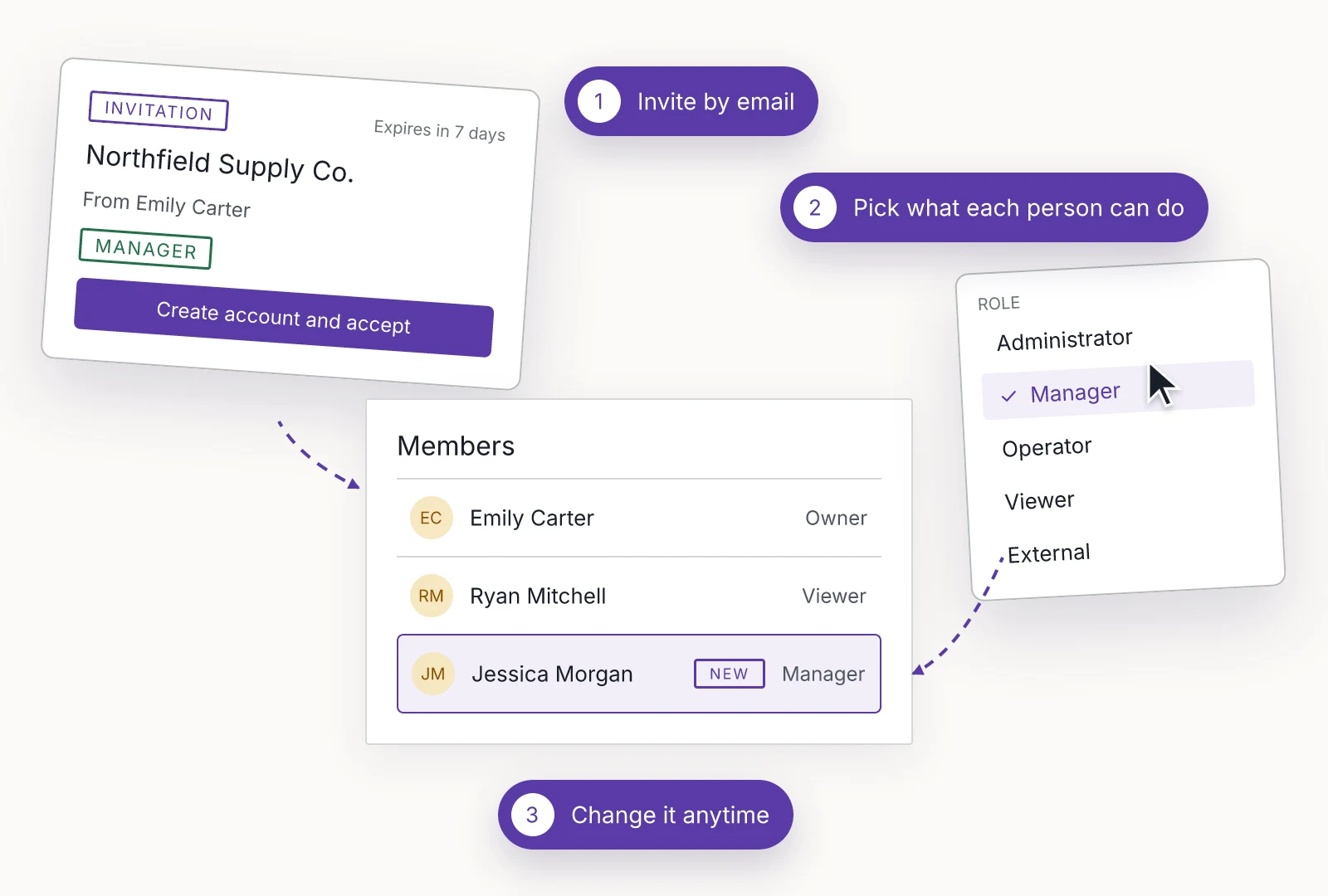
Bring your team into the workspace with an email invitation. The role you pick decides what each person can see and do, and you can change it whenever their job changes.
8 stepsOwner, Admin or ManagerEvery plan
When to use it
- Someone joins the team and needs to work on the items.
- A partner or client needs limited access to follow a few items.
- Someone took on new duties and needs more, or less, access.
Step by step
Invitation sent in a few clicks:
- 1
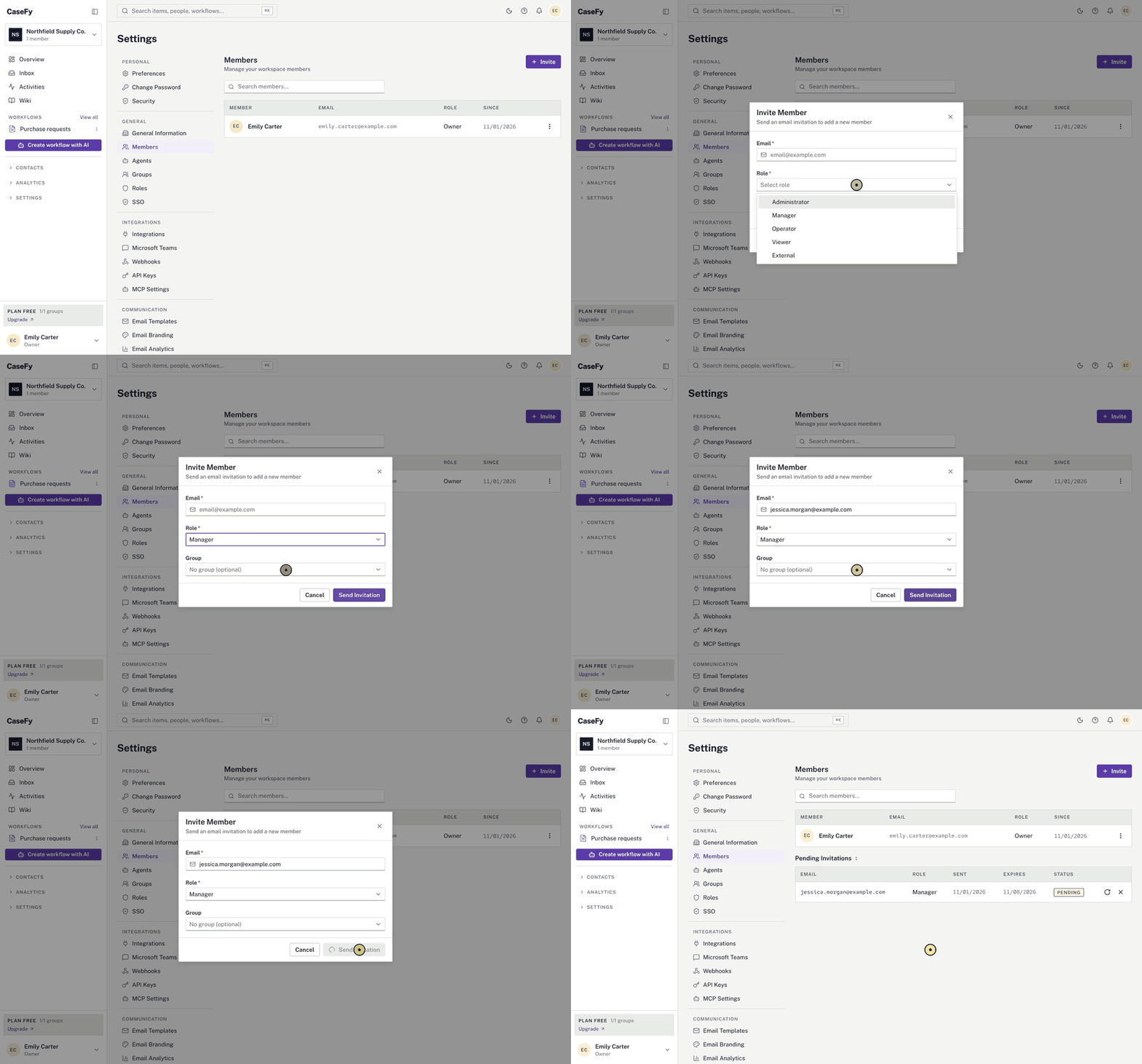
Open Settings › Members and click Invite.
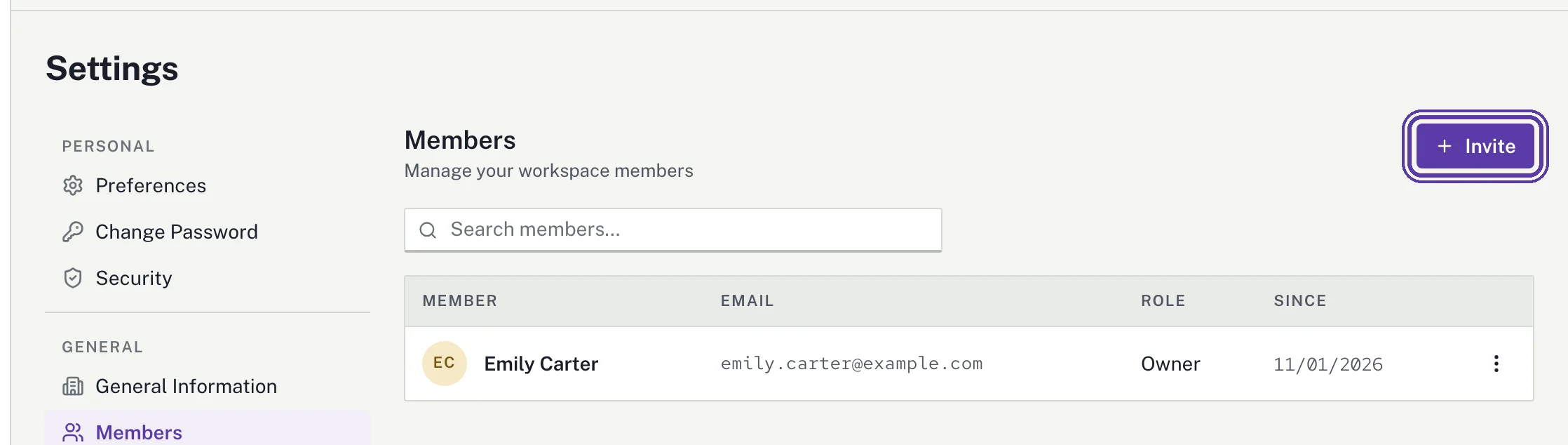
Owners, Admins and Managers see this button. - 2
Pick the Role.
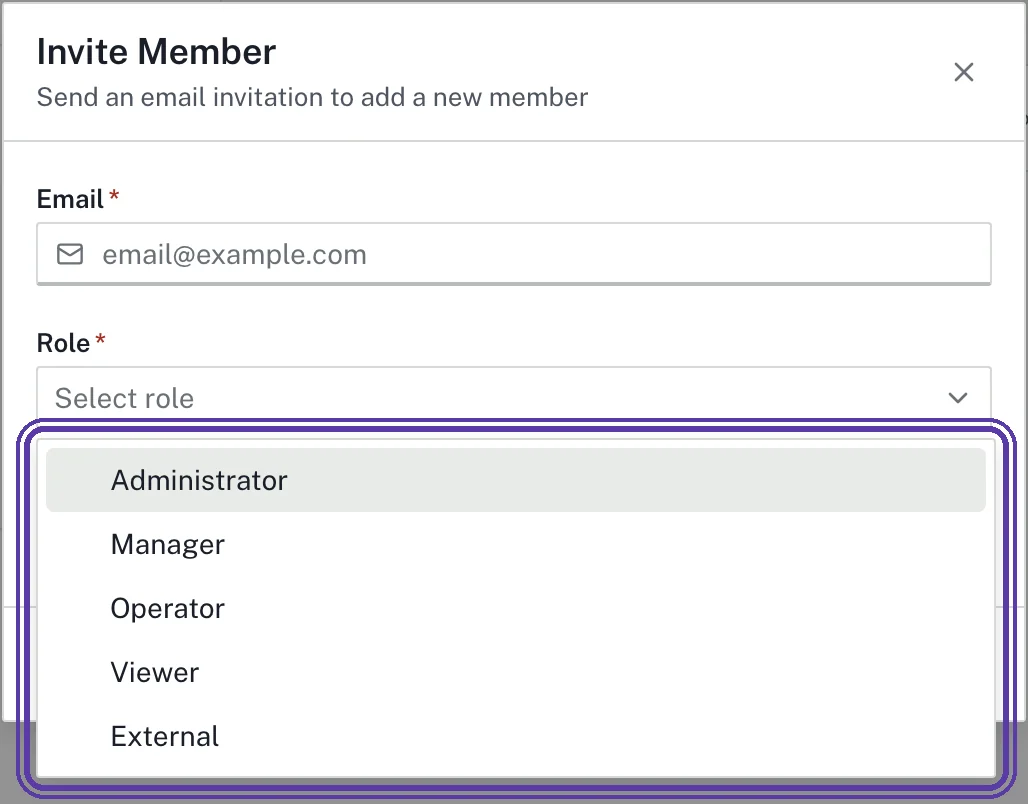
The list only shows roles at or below yours. Nobody is invited as Owner. - 3
Type the Email and click Send Invitation.
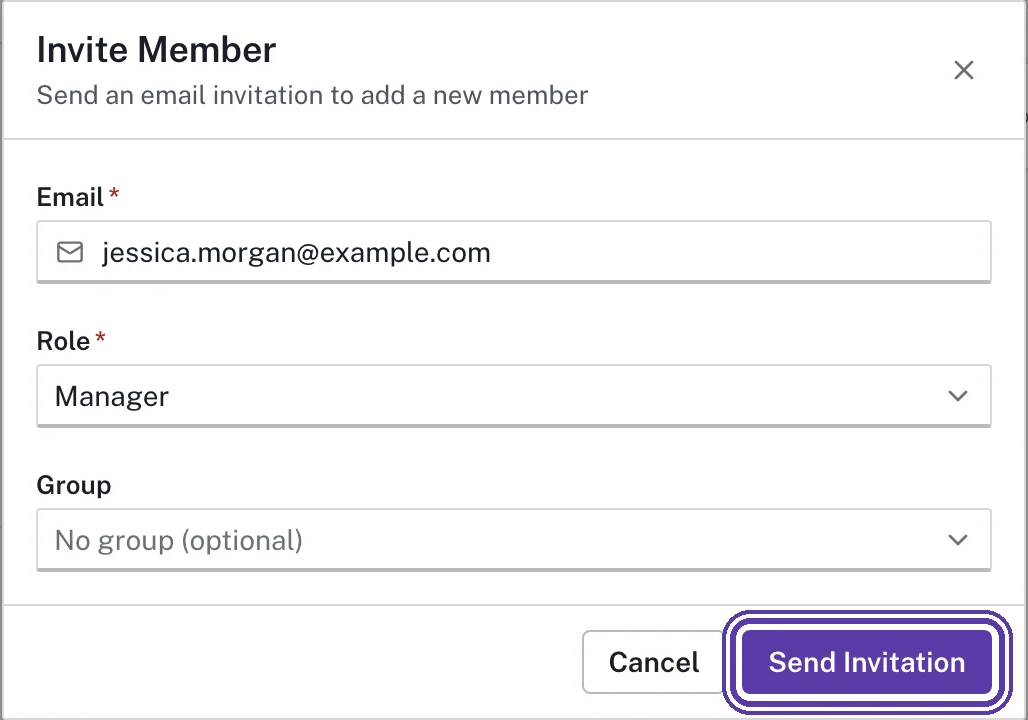
Group is optional and only shows up when the workspace has groups. - 4
The invitation shows up under Pending Invitations.

The buttons at the end of the row resend or cancel it. - 5
The person gets an email with a button to accept.
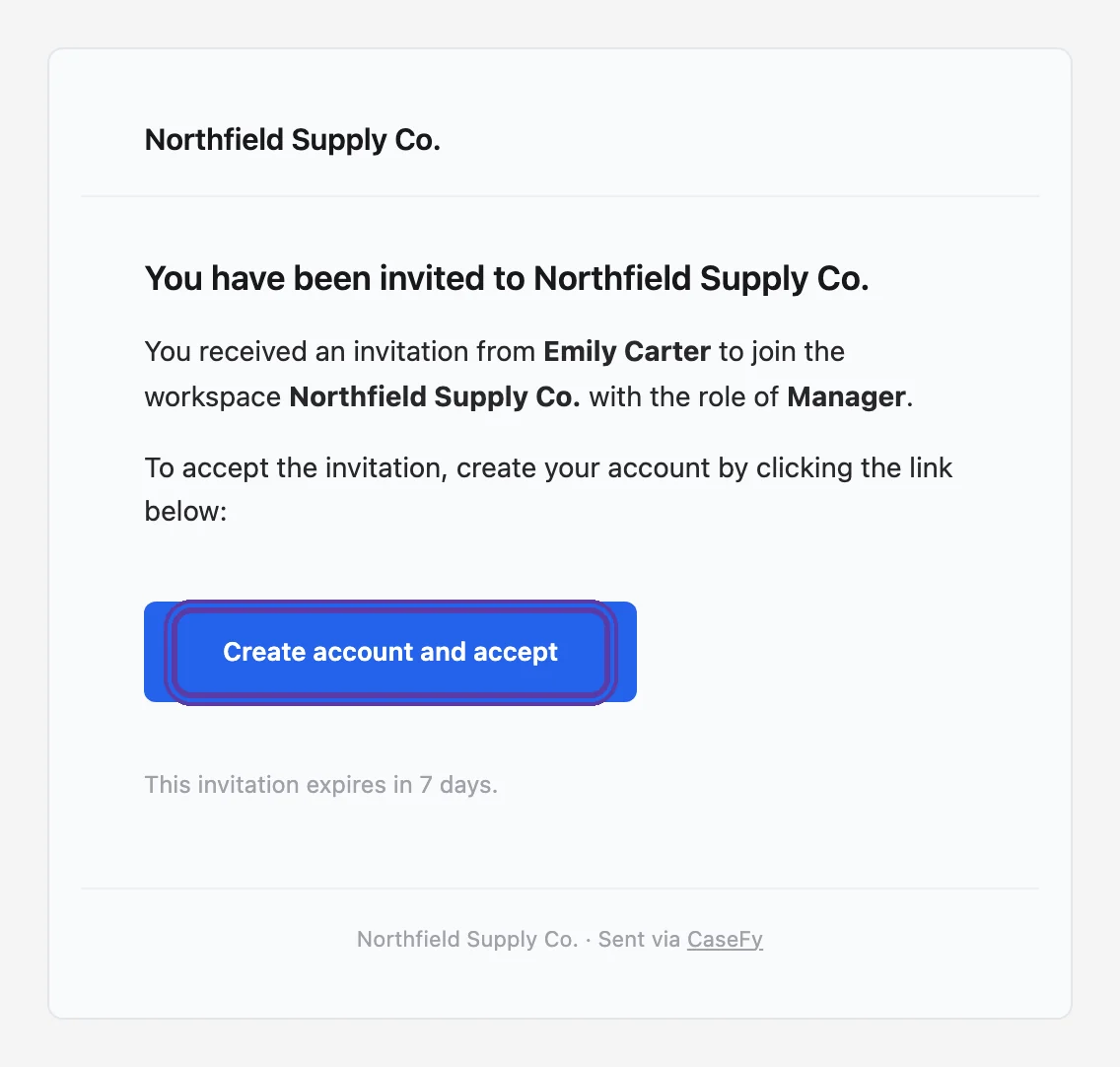
The invitation is valid for 7 days. - 6
The link opens the sign-up page, with the invitation and the email already filled in.
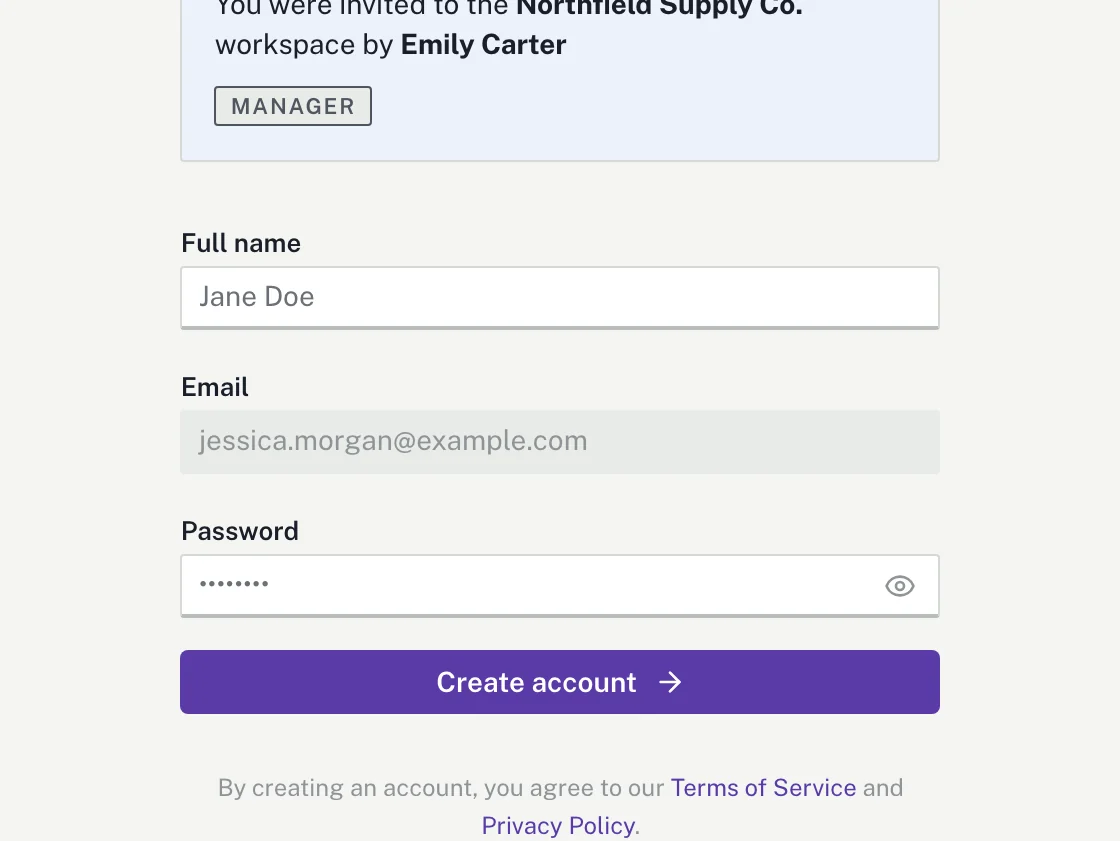
They choose a name and a password, and they are in with the role you picked. - 7
Once they accept, they show up in Members with their role.
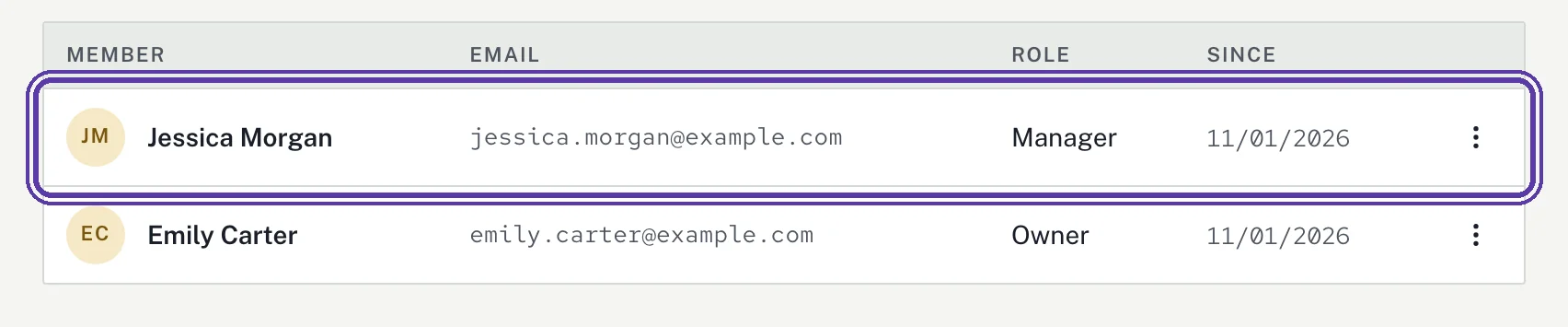
The invitation leaves the pending list. - 8
To change a role, open the ⋮ menu on the person's row, click Change role, pick the New Role and click Save.
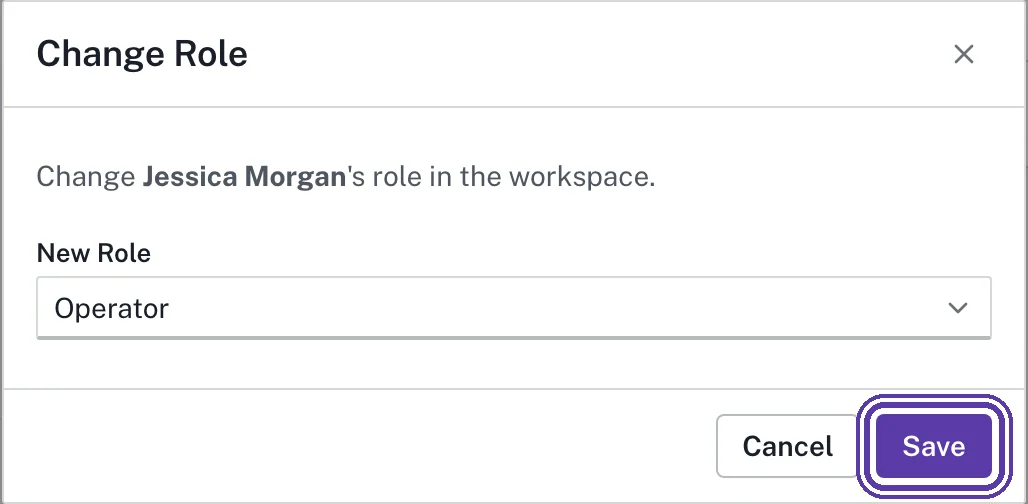
Only Owners and Admins change roles or remove people.
What happens next
The new member sees what their role allows from the first sign-in, in the same workspace as everyone else. If the invitation runs out before they accept, resend it from Pending Invitations: a new link goes out and the old one stops working.
Details
- Who can invite
- Owner, Admin and Manager.
- Who can change roles
- Owner and Admin. They can also remove people.
- Roles
- Administrator: administrative access. Manager: manages workflows and items. Operator: works on items. Viewer: read only. External: limited access for people outside the company.
- Invitation
- Valid for 7 days. Resending gives it a new link and 7 more days.
- Email domain
- If your workspace only accepts one email domain, invitations to other domains are refused.
- How many people
- Depends on your plan. Pricing
Common questions
The invitation expired. What now?
Resend it from the pending row. A new link goes out, valid for 7 more days.
Can I invite someone who already uses CaseFy?
Yes. If the email already has a CaseFy account, the person joins the workspace right away, with no email.
Why is Administrator missing from my list?
You only see roles at or below your own. A Manager, for example, can't invite an Administrator.
Send your next caller a link
Describe the job people ask you about most and have it running this afternoon.
14-day free trial · No credit card