
CaseFy + Google Drive integration
From Drive to the item. From the item to Drive.
Attach the report, proposal or contract that’s already in your Drive to the item, without downloading and uploading it again. Then let a rule file every approved or signed document in Drive, in the right folder.
Works with any Google account · On every CaseFy plan, including the 14-day trial
How it works
Three steps. No downloads.
- 01
Attach from Drive
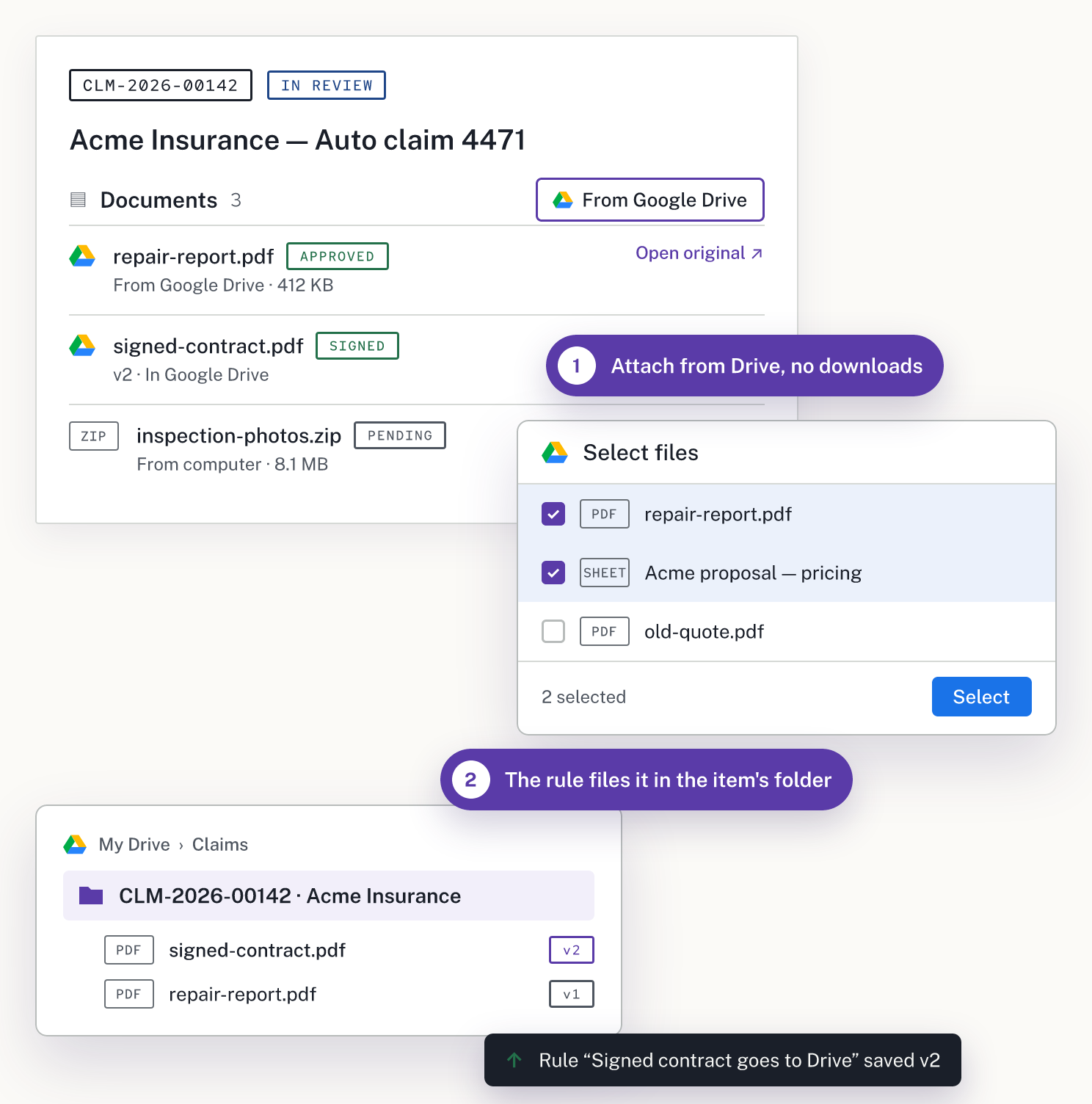
On the item, click “From Google Drive” and pick the files. PDFs and images become item documents; Docs and Sheets stay as links, always up to date.
- 02
Set up the rule
“When the signature is complete, save to Drive.” You choose what to save, the folder and how to organize it.
- 03
Find everything in Drive
Every item gets a folder with its code and name. People who live in Drive find the contract without opening CaseFy.
What happens on its own
Nobody downloads from one place to upload to another.
One folder per item
The folder is created with the first file and remembered on the item. Renaming it in Drive or changing the item title won’t create another one.
Organized your way
One folder per item, one per customer with its items inside (Customers / Sunrise Bakery / CT-2026-00007), or everything in one folder.
New version, same file
Version 3 of the contract is out? It becomes version 3 of the same file in Drive. No more contract (2).pdf.
Only what matters
Save just the document that triggered the rule, or every approved document on the item. A rejected draft never reaches Drive.
The file stays on the item
A PDF attached from Drive is copied to the item. If someone deletes the original, the approval and the signature still hold.
Sheets that stay current
A proposal the team is still editing in Sheets? It stays as a link, so whoever opens the item sees today’s numbers.
A rule in one minute
Ask for the rule. Drive organizes itself.
Tell the CaseFy assistant “when the contract is signed, save it to Drive in a folder per customer”. It builds the rule; you just pick the folder.
01Documents
The customer sends the invoice through the form. It lands on the item and, right away, in their folder.
02Review
The analyst approves the report on the item. Only what’s approved goes on to Drive.
03Signature
Everyone signed: the signed PDF goes to Signed contracts.
04Done
Item closed? Everything approved goes along to the customer’s folder.
05Audit
At year end, the auditors open Drive and find every item in a folder named with its code.
Security
CaseFy only sees what you choose.
- We use Google’s narrowest permission: only the files you pick and the folders CaseFy creates.
- When you attach, access covers just that choice. Nothing is stored.
- The rules’ connection is encrypted and can be turned off at any time.
- CaseFy never deletes anything in your Drive.
Assistant
One sentence becomes the rule.
Ask the CaseFy assistant and it creates the rule with trigger, folder and organization. Agents read the documents copied to the item, just like the others.
Questions
What people ask before connecting.
Can CaseFy see my whole Drive?
No. It only sees the files you pick when attaching and the folders the rules create. The rest of your Drive stays out.
If I delete the file in Drive, does it disappear from CaseFy?
PDFs, images and other files stay stored on the item. Docs, Sheets and Slides stay as links and follow whatever happens in Drive.
Do I need Google Workspace?
No. It works with any Google account. For rules, prefer a company account or a shared drive: if someone leaves, the files stay.
Which plan is it on?
Connecting, attaching from Drive and saving to Drive with a rule work on every plan, including the 14-day trial. Your plan’s storage limit applies.
What happens if I disconnect?
Rules stop saving and show a warning. Everything already saved stays in Drive and in CaseFy.